

To get reimbursed for a church member expense, please follow the below process:
You will be using a Google form to request your reimbursement. All of the information needed to reimburse you is contained within the Google Form. It is easy to use, and if you have any questions, you can ask Eric for help with training.

Note: Please don’t hand expense receipts to the Treasurer. They are easy to lose and need to be entered into a tracking spreadsheet digitally anyway.
Receipt Uploads using the Google Form
A Google Account Required for Receipt Uploads!
Don’t worry, Google Accounts are Free! If you have a Gmail.com email address, you already have a Google Account. If you don’t, you can create a Google Account using any email address. Click on this link to access or create your Google Account: https://myaccount.google.com/
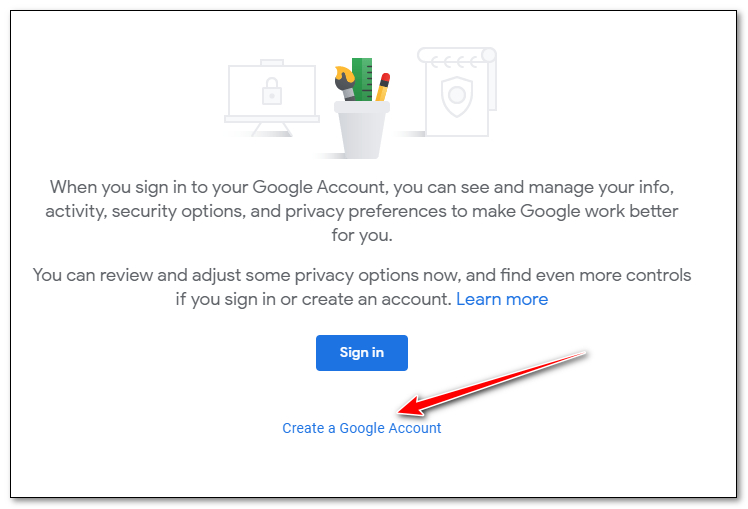
If you already have a Google Account, go ahead and sign in. If you don’t have a Google Account, click on the Create a Google Account link
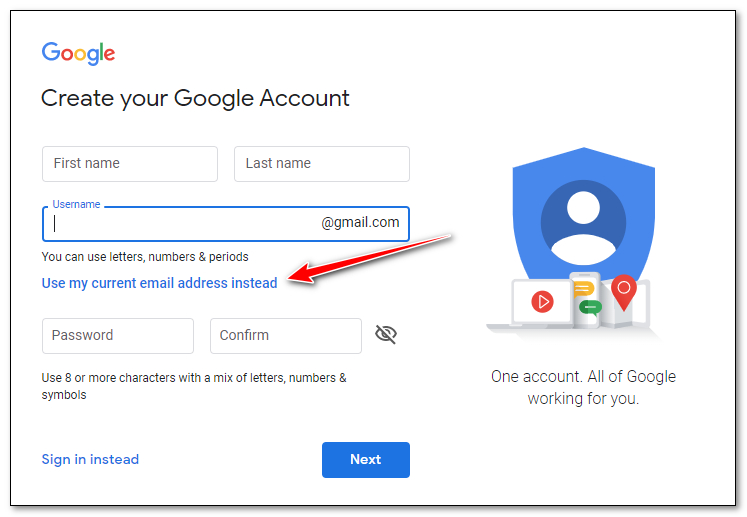
Fill out the basic information for your Google Account. Note: If you want to use your own existing email address rather than creating a new Gmail.com address, click the Use my current email address instead link.
For the Receipts you can attached either PDF files or JPG files:
- PDF files are often used when scanning receipts on a scanner. You can use the scanner at the church building in the copy room.
- JPG files are just photos. You can take a photo with your phone and upload the image. We prefer if you do this that you take it on a lower quality to reduce the file size.
Don’t have access to a scanner? No problem, use Genius Scan on your phone!
A great Smartphone apps for taking “scans” of receipts with your phone is Genius Scan. You can get it for Android or iPhone here: https://thegrizzlylabs.com/genius-scan . There is a paid version, but the Free Version will work fine for church receipts!
Have an Online receipt from a website? No problem, you can print to PDF!
Microsoft Windows have a built in Print to PDF print driver. Just print the document or webpage and choose the PDF Printer option. If you don’t have you, you can download Foxit PDF Viewer or Adobe Acrobat PDF Viewer for free. After installing either of these viewers, you will have a PDF printer in your printer list.